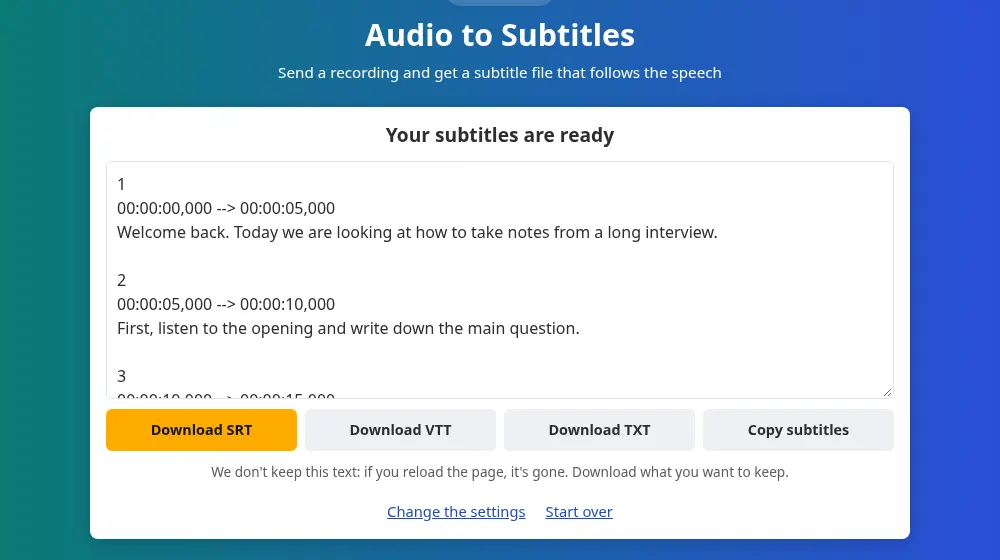
How to create subtitles from audio
- Press Choose an audio file and select your recording, of up to 100 MB and 20 minutes. MP3, M4A, WAV, OGG, Opus, FLAC and AAC all work. For a video, use the subtitle generator.
- Pick the language spoken. Setting it yourself helps when the recording starts with music.
- Press Generate subtitles and wait for the words to appear.
- Download the SRT or VTT file and add it to your project.
When you start from the audio and not a video
- A voice-over: the narration is recorded first and the images come later, so you can time your cuts against the subtitles.
- A podcast clip: turn an episode into a video with moving captions for social networks.
- A separate microphone: the clean recording from your microphone often gives better results than the camera's sound.
- An audio-only course: give a lesson a text track for people who can't or prefer not to listen.
Keeping subtitles and sound together
The times in the file count from the first instant of the recording. In your video editor, put the audio at the start of the timeline with the subtitles beginning at the same point, and the two will match. If you move the audio later, select both tracks and move them together. Trimming a section after generating the file will throw off everything that comes after it, so finish the edit first when you can.
Narration subtitles in CapCut
A common way to make short videos is to record the voice first and build the images around it in CapCut. Generate the SRT from the recording, then put the audio at the very start of the CapCut timeline and import the file there, so the words line up with the voice.
- CapCut on a computer or on the web accepts SRT files in its captions area.
- The CapCut phone app doesn't import subtitle files, according to CapCut's help pages. Bring the file in on a computer or the web, and open the synced project on your phone afterwards.
CapCut belongs to another company and has no connection with this site. Its name appears only to show where the file is used.
Which recordings work best
- Speech close to the microphone gets the fewest mistakes, and a quiet room matters more than an expensive microphone.
- Songs and singing give poor results, because the recognition is made for speech and music covers the words.
- Voice messages work well, even from a phone, as long as only one person is talking at a time.
Fixing the file
An SRT is plain text, so any text editor can open it. Read it while listening to the recording, and correct names and technical terms, which are the most common mistakes. Change only the words and leave the numbers and times alone, or your editor may not accept the file. If you only need the words with no times, speech to text is the simpler page.
Frequently asked questions
Can I make subtitles from a WhatsApp voice message?
Yes, if you have the file on your device. WhatsApp audio usually comes as OGG or Opus, and both are accepted. Please only use recordings that you have the right to use, and remember that the file passes through our server.
Will it work for song lyrics?
Not reliably. Music covers the voice, and singing doesn't sound like the speech the recognition is built for, so expect missing and invented words. A cleaned-up vocal track does better, but it still needs careful review.
Does the tool create a video?
No. You get a subtitle file with text and times. To see it on screen, bring the audio and the file into a video editor along with your images, and export the video from there.
Should I choose SRT or VTT?
SRT for almost everything, including video editors and YouTube. VTT is meant for video players on web pages. Both hold the same words and times, so you can download each and try them.
What is the longest recording I can send?
20 minutes and 100 MB per file. For a longer episode, split it with the audio cutter and send the parts. The times of each part start again from zero, so place each file at the right point in your editor.
Is my recording saved anywhere?
No. It is deleted as soon as its sound has been read, and the subtitles go straight to your page without being saved. We only record usage data, such as how long the file was and its language.
Will the subtitles follow my voice-over in CapCut?
Yes, as long as the recording starts at the very beginning of the CapCut timeline, because the times in the file count from its first instant. If you trimmed the start of the audio in CapCut, trim the recording the same way and generate the subtitles again.