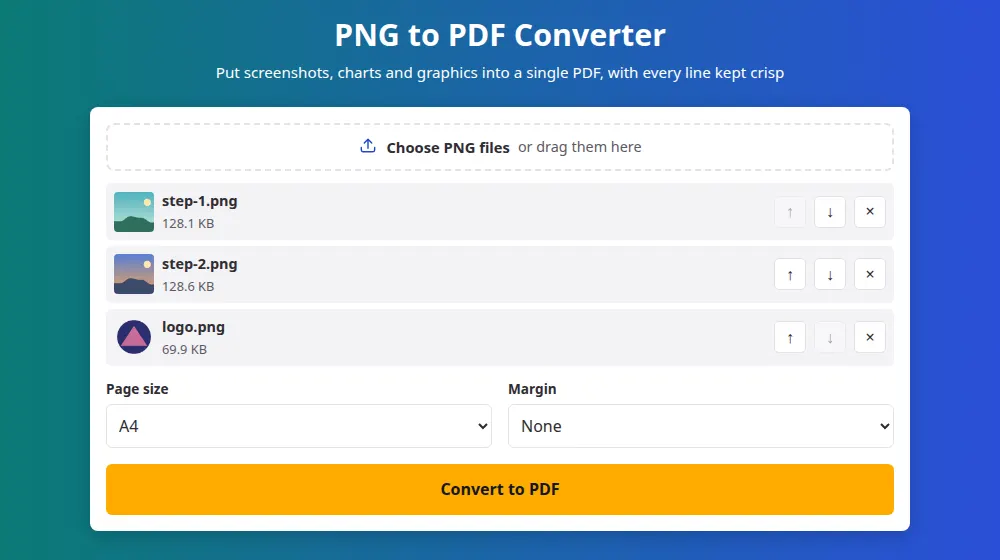
How to convert PNG to PDF
- Press Choose PNG files and select your screenshots, or drag them onto the box.
- Use the arrows to set the order. The first picture becomes page one.
- Choose a page size and margin. Same size as the image works well for screenshots.
- Press Convert to PDF and download the file, called images.pdf.
Why PNG files need their own care
PNG is the format of screenshots, diagrams, logos and anything else with hard edges and flat color. Each of those details is what JPEG compression tends to smudge, leaving a faint haze around letters and lines. A picture with transparent areas is kept in lossless form inside the PDF, while one with no transparency is saved at high JPEG quality to keep the file a reasonable size. In both cases the pixels are never enlarged.
Good uses for it
- Step-by-step instructions: take one screenshot for each step, then send a single file instead of a dozen attachments.
- Proof of something on screen: payment confirmations, booking pages and error messages are easier to file and forward as a PDF.
- Charts and slides: export them as images from a spreadsheet or a design program, and collect them in a printable handout.
- Logos and artwork: send a client a preview in a format that opens on any device, without needing an image editor.
Choosing a page size for screenshots
Paper sizes suit documents that will be printed, but a wide screenshot on A4 turns the page sideways and leaves white space around it. For something meant to be read on a screen, Same size as the image gives each page the exact shape of its picture, so nothing is shrunk to fit a sheet. Add a margin only if you plan to print: many printers can't reach the edge of the paper.
If the PDF comes out too large
Screenshots of photos and gradients with transparency take up the most room, since they are stored without loss. When a file has to be smaller, run the finished document through compress PDF. For a mix of formats, the JPG to PDF page takes photos just as well, and you can also combine several finished files with merge PDF.
Frequently asked questions
Does the transparent background stay transparent?
Yes, it stays transparent inside the PDF. Most readers show those areas over a white page, so a logo will look as if it sits on white paper unless the viewing program uses another background color.
Will my screenshots lose quality?
Pictures that have transparency are stored without any loss. The others are saved as JPEG at high quality, where the difference is very hard to see. Images above about 16 million pixels are scaled down to that limit so that the browser can handle them, and a note tells you when that happens.
Can I select the text in a screenshot after converting?
No. A PNG is a picture, so the words in it remain part of the picture in the PDF. Copying them would need character recognition, which this tool doesn't do.
How many PNG files can I convert at once?
Up to 50 at a time, each up to 40 MB. Phones have lower limits because they have less memory, and the limits on screen show what applies to your device. For more, create several PDFs and join them with merge PDF.
Can I add other image types to the same PDF?
Yes. The file picker starts with PNG, but if you drag in a JPG, WebP or HEIC picture it is accepted as well and placed in the order you set. That's handy when a document mixes screenshots with phone photos.
Are my screenshots uploaded anywhere?
No. The PDF is built in your browser, so nothing leaves your device. That matters for screenshots, which often show account numbers, messages and other private details without you noticing them.