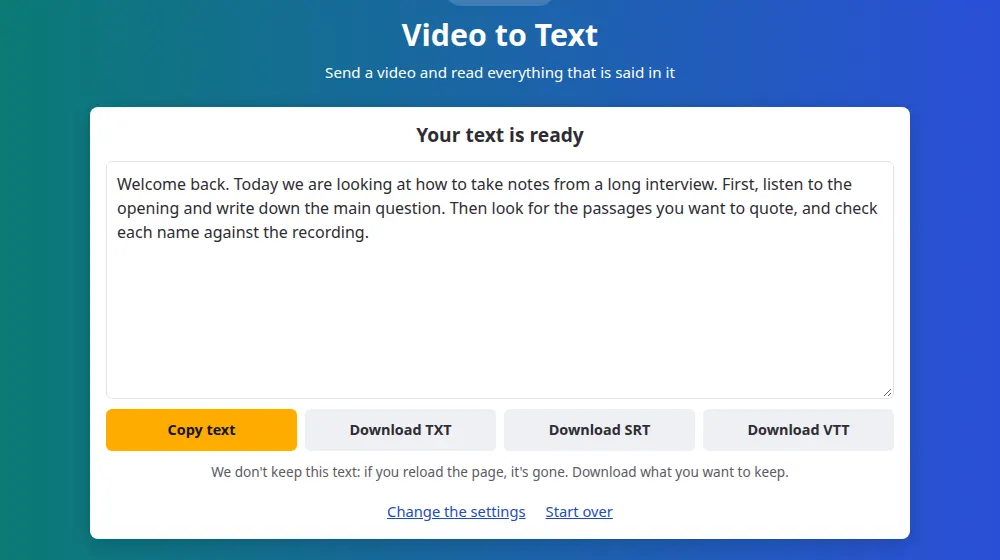
How to turn a video into text
- Press Choose a video file and select your video, of up to 100 MB and 20 minutes. MP4, MOV, MKV and WebM all work.
- Pick the language being spoken, or leave it on automatic detection.
- Press Transcribe. Only the sound is used, so the picture makes no difference to the wait.
- Copy the text from the box, or download it as a TXT file.
What gets read, and what doesn't
The tool listens to the speech in the video. It doesn't look at the picture, so words on slides, signs or existing captions won't appear in the text unless someone says them aloud. If a video has no sound track, you'll get a message saying so rather than an empty result.
When a transcript beats watching
- A recorded class or webinar: search for the moment a topic came up instead of scrubbing through the timeline.
- A screen recording: turn someone's spoken walkthrough into written steps you can follow and correct.
- An interview on camera: pull exact quotes without pausing and rewinding.
- Your own video: reuse what you said as a description, a blog post or notes.
Videos from a phone are often too large
Phone cameras can fill 100 MB in a minute or two, well before the 20-minute limit. The sound is all the transcription needs, so extract it with the MP4 to MP3 converter and send the MP3 to speech to text, which takes audio files. The words come out the same, because they were always in the sound track.
Text or subtitles?
Choose this page when you want to read or reuse the words. If the goal is to show them on top of the video at the right moments, the subtitle generator puts the times first and hands you a file for your editor. Both pages can download either format.
Frequently asked questions
Can I paste a link to a video?
No, the tool only reads a file from your device. If the video is yours, use the original file you saved. Only transcribe videos you have the right to use.
Will it read the text that appears on screen?
No. It works from the sound alone, so anything written in the picture is ignored unless it is also spoken. Recognizing text in images is a different process that this tool doesn't do.
Which video formats work?
MP4, MOV, MKV and WebM, along with most other common formats. If a file can't be read, it may be damaged or use an unusual format.
My video is longer than 20 minutes. What can I do?
Extract the sound with the MP4 to MP3 converter, split it with the audio cutter and send each part to speech to text. Set the language by hand so that every part is treated the same way.
Does the video stay on your server?
No. It is only sent when its turn comes, and it is deleted as soon as the sound has been read. The text goes straight to your page without being saved, so copy it before you leave.
Can it separate what each person says?
No, the text comes out as one continuous block with no names. In a recording with several speakers, you'll need to mark who said what while you read it through.
Can I transcribe a recorded class or meeting?
Yes, if you have the recording as a file. Zoom, Teams and Google Meet save their recordings as MP4, which works here. Each file can run up to 20 minutes. Ask the people in it before transcribing, since a meeting often includes things they wouldn't want shared.