How to merge PDF files
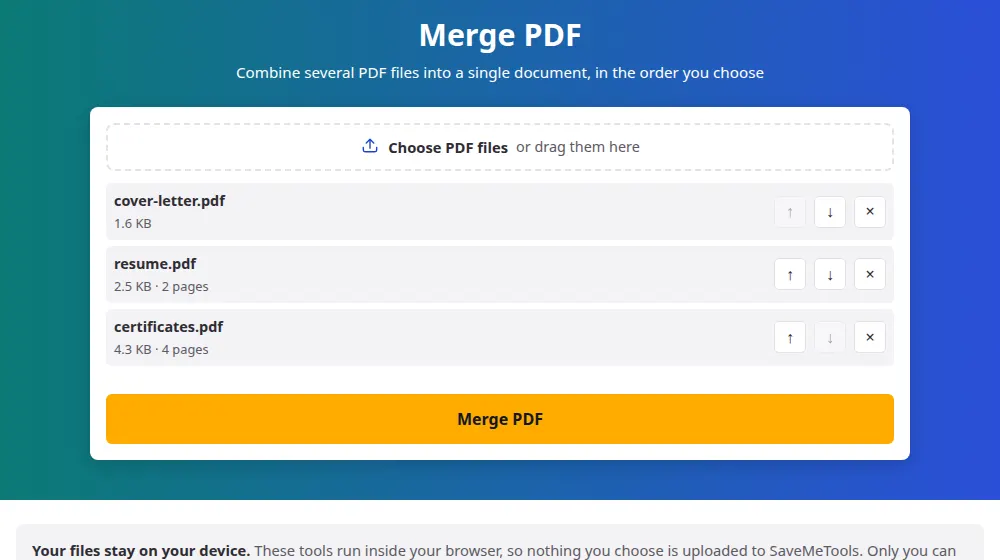
- Press Choose PDF files and select them all at once, or drag them to the box. You can add more afterwards.
- Use the arrows next to each file to set the order. The file at the top comes first in the final document.
- Press Merge PDF. It usually takes a moment, even with long documents.
- Press Download to save the new file, called merged.pdf.
When joining PDFs saves you time
- Job applications: a cover letter, a résumé and certificates sent as one attachment, so nothing gets lost.
- Accounting: a month of invoices in one file, in date order, rather than thirty separate attachments.
- Studying: chapters that a teacher sent one by one, gathered into something you can read straight through.
- Contracts: the signature page you scanned, put back with the rest of the agreement.
What stays the same in the final file
The pages are copied as they are, not redrawn. Text stays selectable, pictures keep their resolution and the size of each page doesn't change, so a landscape chart can sit beside portrait pages. For that reason, the merged file weighs about as much as the originals added together.
What may be lost
The bookmarks of the original files aren't carried over, and fillable fields may stop working in the merged copy. If you still need to fill in a form, do it first, save it and merge afterwards. Links to outside websites usually keep working, but links that jump to another page of the same document may not.
Getting the order right
It's worth renaming files with a number at the start before you choose them, like 01-cover and 02-report: most systems list them that way in the file picker, so they arrive nearly in order. If a single page is in the wrong place, use split PDF to take it out first.
Frequently asked questions
How many PDFs can I merge at once?
Up to 50 files, with up to 100 MB each and 300 MB in total. For more than that, merge them in groups and then merge the results, which works just as well.
Will the merged file have a watermark?
No. We add nothing to your pages: no logo, no footer and no extra page at the end. The document you download contains only what was in your files.
Why did a file get refused?
Usually it's protected by a password, and the message says so. A file may also be damaged or not really be a PDF, even if its name ends in .pdf. Opening it in your PDF reader and saving a new copy often fixes it.
Can I merge a PDF with an image or a Word file?
Only PDFs go in here. Convert pictures first with JPG to PDF and then merge the result with your other files. Word can save a document as PDF through its own Save As menu.
Can I use only some pages from each file?
Not in a single step. Cut each file down with split PDF first, keeping only the pages you want, and then bring the shorter files back here.
Will the merged file be smaller?
No, it will be about the sum of the originals, since pages are copied without being compressed. If an email service rejects the attachment, send it in parts, or lower the size of any scans before merging them.
Can I merge PDFs on my phone?
Yes, in your phone's browser. Choose the PDFs from Files on an iPhone or from Downloads on Android, set the order and download the result. Phones get lower limits because they have less memory, and the page shows them before you start.