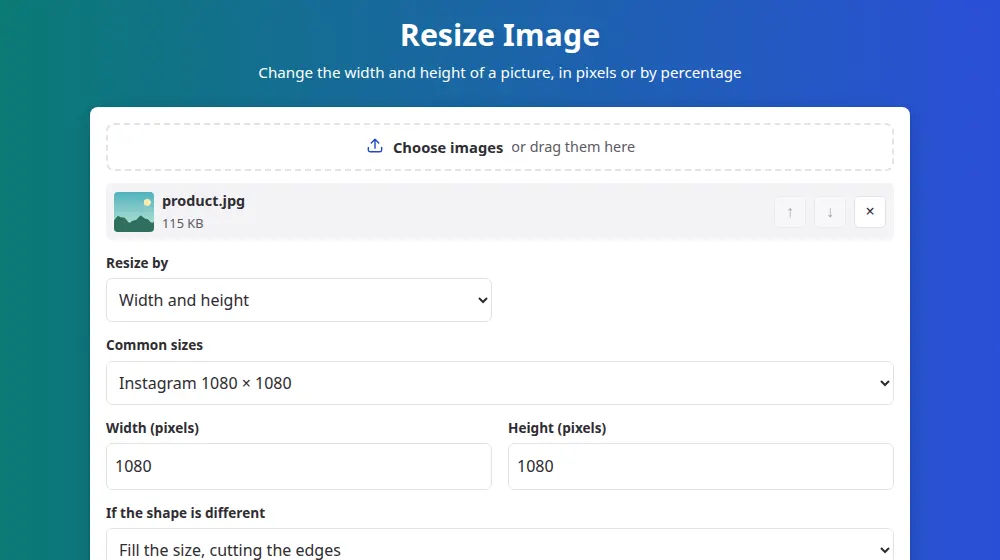
How to resize an image
- Press Choose images or drag them to the box. Every picture you add gets the same settings.
- Pick a common size from the list, or write the width and height you need. To keep the shape, one of the two is enough.
- Choose what to do if the shape is different, or switch to resizing by percentage.
- Press Resize images and download the results. The new size appears in each file's name.
When the shape doesn't match
A horizontal photo won't fit a square without something giving way. These are your three choices:
- Keep the whole image: nothing is cut, and the picture fits inside the size you wrote, so one side may end up smaller. A 4000 × 3000 photo at 1000 × 1000 becomes 1000 × 750.
- Fill the size, cutting the edges: you get exactly the size you asked for, losing the same amount from both sides. This is what you want for profile pictures and social media posts.
- Stretch to fit: you also get the exact size, but people and objects look squashed or stretched. It's rarely what you want.
Sizes that are often needed
- Instagram post: 1080 × 1080 pixels.
- Stories and Reels: 1080 × 1920 pixels, vertical.
- YouTube thumbnail: 1280 × 720 pixels.
- Link preview on Facebook and other networks: 1200 × 630 pixels.
- Website banner or wallpaper: 1920 × 1080 pixels.
Networks change their recommendations from time to time, so it's worth checking their help pages for important campaigns.
Making a picture smaller or larger
Shrinking is safe: the picture stays sharp and the file gets much lighter. Enlarging is different, because the browser can only spread existing pixels over a larger area, which makes it softer. A slight increase is rarely noticed, but doubling the size of a small picture will look blurry.
If what you really need is a smaller file rather than fewer pixels, compress image is the better tool, since it keeps the picture's dimensions.
Frequently asked questions
Does resizing reduce the quality?
Reducing the size keeps the picture sharp, though the finest details are gone. Each file is saved at high quality. Enlarging, however, always softens the image, so start from the largest version you have.
How do I resize without distorting the image?
Fill in only the width or only the height, and the other side is calculated for you. If you fill in both, leave the setting on Keep the whole image or Fill the size, cutting the edges. Only Stretch to fit distorts.
Can I resize many images at once?
Yes, up to 50 at a time, and all of them receive the same settings. If the pictures have different shapes, Fill the size, cutting the edges gives you identical dimensions across the set, which is useful for product catalogues.
In what format is the result saved?
JPG, PNG and WebP stay as they are, so a transparent PNG keeps its transparency. Other formats, such as HEIC and BMP, come out as JPG. In browsers that can't create WebP, a WebP image is also saved as JPG.
What's the largest size I can create?
Up to 16 megapixels, about 4600 × 3450 pixels. Beyond that, some browsers fail silently, especially on phones, so the tool brings the picture down to that limit and tells you when it does.
Can I set the size in centimeters for printing?
Not directly, since files are measured in pixels. A simple rule converts them: for sharp prints at 300 DPI, multiply the centimeters by 118. A 10 × 15 cm photo needs about 1180 × 1770 pixels.
What size should a photo be for Instagram?
A square post looks best at 1080 × 1080 pixels, and Stories and Reels at 1080 × 1920. Both are in the list of common sizes, and the option to fill the size, cutting the edges, gives the photo that shape without stretching it.