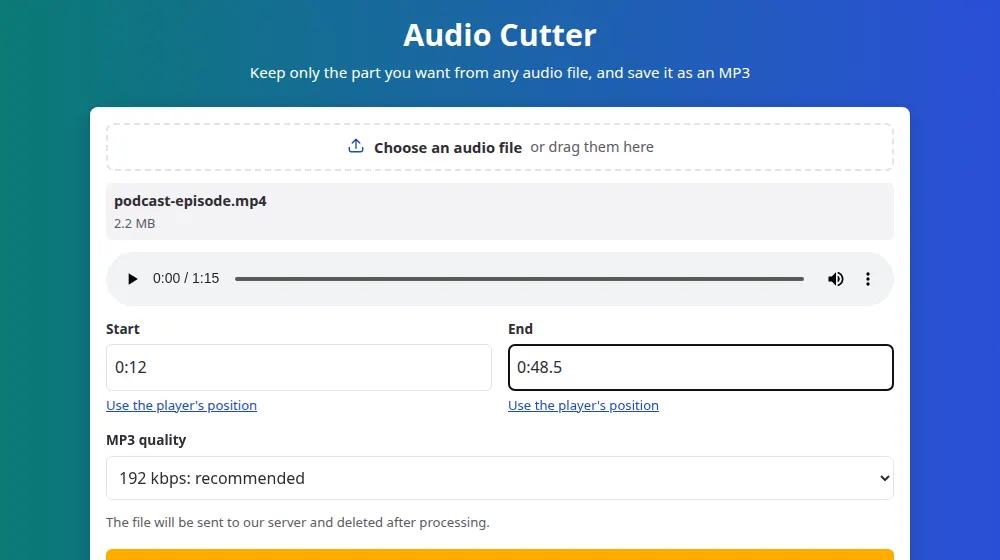
How to cut an audio file
- Press Choose an audio file or drag it to the box. MP3, M4A, WAV, OGG and FLAC work, and so do videos.
- Play the file and press Use the player's position when you reach the start of the part you want. Do the same for the end.
- Fine-tune the times by typing them, like 1:30 or 1:30.5.
- Press Cut audio, listen to the result and press Download MP3.
Finding exactly the right moment
The player gets you close. To be exact, type the time with a decimal: 0:42.5 means 42 and a half seconds in. It's worth listening to the first and last second of the result. If a word gets clipped, press Change the settings, move the start a little earlier, and cut again without choosing the file a second time.
What people cut audio for
- Ringtones: usually 20 to 30 seconds of a song's best part. On an iPhone, a ringtone also has to be converted in GarageBand or iTunes, but most Android phones accept an MP3 directly.
- Podcasts: removing the silence or small talk at the start, and creating a short clip to promote an episode.
- Interviews and classes: saving just the answer or passage you plan to quote.
- Voice messages and presentations: taking out a long pause or a false start at the end.
Quality after the cut
The part you keep is saved as a new MP3, so choose a quality at or slightly above that of the original. For a 128 kbps file, 128 or 192 kbps preserves what's there. MP3 is compressed each time it's saved, and while once is hard to notice, repeating the process over and over does wear the sound down, so cut from the original file when you can.
If the player doesn't appear
Your browser may not be able to play some formats, such as certain MKV or FLAC files. The cut still works, because our server reads the file. Just type the start and end times by hand, using another player to find them.
Frequently asked questions
Can I remove a part from the middle of a file?
Not in a single step, since the tool keeps one continuous part. To drop the middle, cut the piece before it and the piece after it, then join the two in a free editor such as Audacity.
In what format is the cut saved?
Always as MP3, which plays on almost every device, even if your original was WAV or M4A. The file's hidden details, such as the title and the artist, aren't carried over, and you can add them again in a music app.
How long can the file be?
Up to 30 minutes and 100 MB. For a longer recording, split it with an audio editor first, or convert it to MP3 at a lower quality to bring it under the limit. The part you keep can be as short as you like.
Can I make a fade-in or fade-out?
Not yet. The cut is clean, starting and ending exactly at the times you chose. Choose a quiet moment for the cut if you want it to sound natural, or add a fade in a free editor.
Is my audio kept on your server?
Only for as long as needed. Your original is erased once the cut is ready, and the result is erased within 10 minutes. We don't listen to files, and the only things we record are the size, the length and the result, with no file names.
Why did I have to wait in line?
Each file takes some processing, so the server handles a few at a time to stay fast for everyone. If you see a place in line, it normally moves within seconds. Keep the page open, and the file starts by itself when your turn comes.
Can I make a ringtone with it?
On Android, yes. Cut the part you want, usually 20 to 30 seconds, download the MP3 and choose it as a ringtone in your phone's sound settings. iPhones need a different format, M4R, which this tool doesn't create.