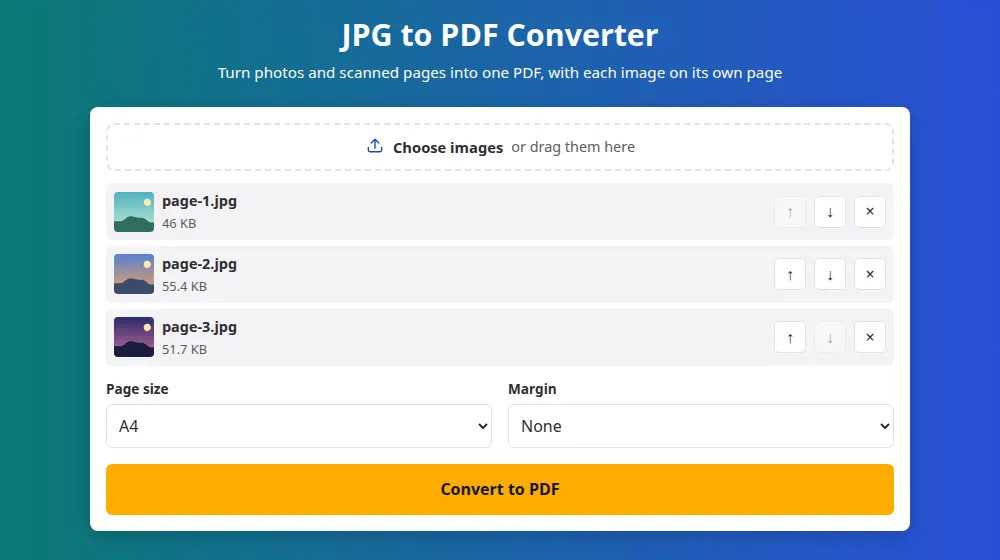
How to convert JPG to PDF
- Press Choose images and select your photos. iPhone HEIC photos, PNG and WebP work too.
- Use the arrows to put them in reading order. The first image becomes page one.
- Choose the page size and margin. A4 suits most documents outside North America, where US Letter is the norm.
- Press Convert to PDF and download the file, called images.pdf.
Which page size should you choose?
- A4 or US Letter: best for anything that might be printed. Each image is fitted inside the page, and wide images turn the page sideways.
- Same size as the image: each page takes the exact shape of its picture, with no white border. It suits portfolios and slides seen on screen.
- A margin: useful when printing, since many printers can't reach the edge of the sheet and would otherwise cut a little of your picture.
An image is never enlarged to fill an A4 or Letter page, because stretching a small picture would only make it blurry. Small images sit in the center at their own size.
Photographing paper for a good PDF
- Put the sheet on a dark table in daylight, and hold the phone parallel to the page rather than at an angle.
- Turn the flash off: it leaves a bright spot in the middle of the sheet.
- Crop the picture in your phone's editor before converting, so the table doesn't appear in the document.
- Zoom in on the photo before sending it: if you can read the smallest line, whoever receives it can too.
Upright photos, wherever they were taken
Phones often save a photo sideways and add a note saying how to rotate it. Some converters ignore that note, leaving pages lying on their side. Here the rotation is applied before the page is created, so each photo appears the way you saw it on your phone.
Frequently asked questions
How many images can I put in one PDF?
Up to 50 at a time, each up to 40 MB. To build a longer document, make several PDFs and join them with merge PDF. Phones may struggle with many high-resolution photos, so try smaller batches there.
Will the PDF be a lot bigger than my photos?
Usually about the same size. Each photo is saved at high quality when placed in the page. If the PDF must fit a limit, shrink the pictures first with compress image, then come back and convert them.
Can I select the text in the PDF afterwards?
No. Each page is a picture of the text, not real text, which is what any converter produces from a photo. Search and copy would need character recognition, a different process that this tool doesn't do.
Does it work with PNG images with a transparent background?
Yes. The transparency is preserved inside the PDF, and most readers show it over a white page. Those images are stored without compression loss, so they can make the file larger than a JPG would.
Can I reorder the pages later?
Before converting, use the arrows. After downloading, you can rearrange the pages with split PDF by writing them in the order you want, or go back with Change the settings, since your images remain on the page until you leave it.
Can I convert a single photo?
Yes, one image is enough. That's handy when a website accepts only PDF: a single photo of a document turns into a one-page file you can upload in a few seconds.
How do I turn a photo into a PDF on my phone?
Open this page in your phone's browser, press the button and pick the photos from your gallery, or take a new one if your phone offers the camera there. Put them in order, convert, and the PDF is ready to send or upload.