How to compress an image
- Press Choose images or drag them to the box. You can add up to 50 at a time.
- Leave the target on automatic for a good balance, or pick a limit such as 100 KB.
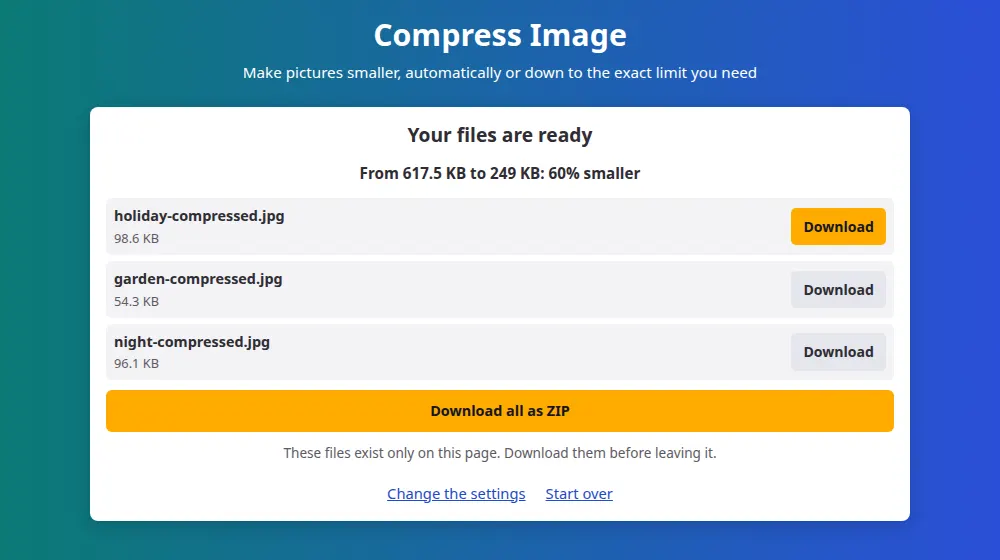
- Press Compress images. The result shows the new size of each file and the total saved.
- Download them one by one, or all together as a ZIP.
Reaching an exact limit, like 50 KB or 100 KB
Exam sites, job portals and government forms often demand photos under a certain size. Choose that limit in the target menu, and the tool looks for the highest quality that fits. It tries different quality levels, keeping the best result that stays under the limit, instead of lowering quality more than it has to.
If quality alone isn't enough, it also reduces the picture's width and height and tells you the new size. A 12-megapixel photo can't reach 20 KB without shrinking, so don't be surprised to see a much smaller picture at the tightest limits.
What happens to each format
- JPG and WebP stay in the same format, saved at a lower quality that's hard to spot by eye.
- PNG without transparency becomes JPG. This is where the biggest savings appear, often over 80% for photos saved as PNG.
- PNG with transparency becomes WebP, which keeps the see-through areas at a much smaller size.
- HEIC, GIF, BMP and AVIF become JPG, or WebP if they have transparency.
When compression barely helps
If a picture has already been compressed, such as a photo downloaded from social media, little can be gained without visible loss. When the new file wouldn't be smaller, you get the original back with a note saying so. Screenshots and drawings have a different problem: the sharp edges of text show small smudges when saved as JPG, so check them at full size before sending.
Frequently asked questions
How much smaller will my image get?
It depends on the picture. A phone photo commonly shrinks by half or more with no visible change, while a PNG photo can lose over 80%. A picture that's already heavily compressed may not shrink at all, in which case the original is kept.
How do I compress a photo to under 100 KB?
Choose Up to 100 KB in the target menu and press the button. The result will never exceed the limit you picked, as long as the picture can be reduced that far. Very tight targets, like 20 KB, may reduce the picture's dimensions as well.
Can I see the difference in quality?
Open the result at full size and compare it with the original, looking at faces, fine text and clear skies, where compression shows up first. If it looks too rough, press Change the settings and choose a larger target.
Does compressing an image change its dimensions?
Not on the automatic setting, unless the picture is above 16 megapixels. With a target size, dimensions only change when quality alone can't reach the limit, and the result then shows the new width and height.
Why is my PNG now a JPG?
PNG has no quality setting to lower, so a photo saved as PNG can only get much smaller by changing format. If the picture has transparency, it becomes WebP so those areas are preserved. If you need a PNG, use the image converter afterwards.
Can I compress the same image twice?
You can, but each lossy round damages it a little more. It's better to go back to the original and choose a lower target in one step. That way you get a cleaner picture at the same file size.
A form asks for a photo of 20 KB. How do I get there?
Choose up to 20 KB as the target. A photo that small usually has to lose pixels too, so the tool scales it down until it fits, and the result notes it. Check that the face or the document is still clear. If the form also gives a size in pixels, resize to it first.