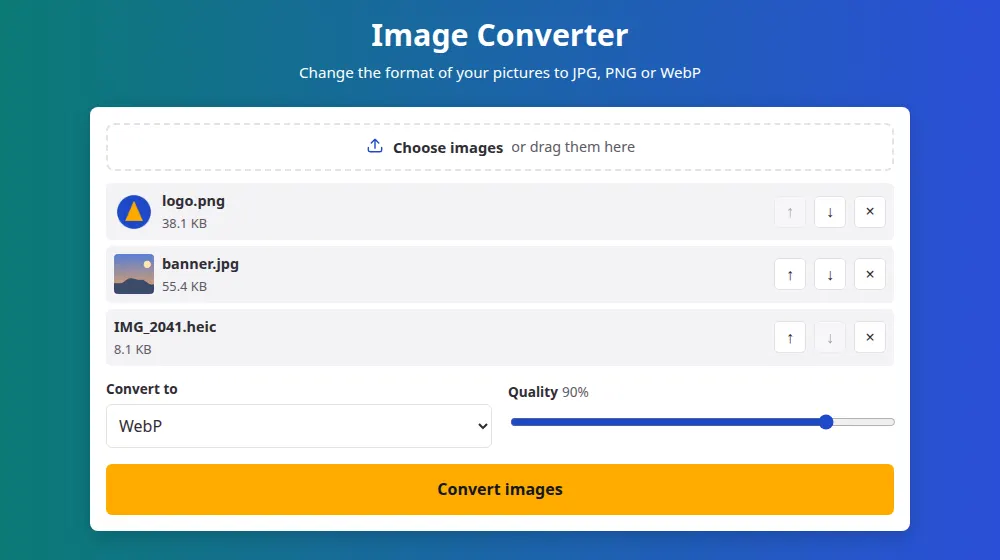
How to convert an image
- Press Choose images or drag them to the box. HEIC, JPG, PNG, WebP, GIF, BMP and AVIF are all accepted.
- Choose the new format in the Convert to menu.
- For JPG and WebP, set the quality. 90% is a safe starting point for almost any photo.
- Press Convert images and download each file, or take them all as a ZIP.
Formats you can create, and when to use each
- JPG is the choice for anything that has to be accepted everywhere: forms, email, printing services. It suits photos.
- PNG suits screenshots, logos and pictures with text, and it's the one that keeps transparency in almost every program.
- WebP suits pictures on your own website, where a smaller file makes pages load faster.
What quality means here
JPG and WebP save space by simplifying details your eyes are less likely to notice. The quality slider decides how far that goes. Between 80% and 100%, most photos look alike while the file size grows quickly, so higher isn't always worthwhile. Below about 60%, you start to see blocks around edges and bands in skies. PNG doesn't have this setting, because it keeps every pixel.
Converting doesn't recover quality
A compressed JPG saved as PNG gets larger, but it doesn't get better: the detail that was lost stays lost. The same applies when a small WebP turns into a JPG. Starting from the best version you have gives the best result, and converting the same picture back and forth should be avoided, since each lossy round wears it down a little.
Looking for a specific conversion? These pages explain what to watch for in each case: HEIC to JPG, WebP to JPG, PNG to JPG and JPG to PNG.
Frequently asked questions
What happens to transparent backgrounds?
PNG and WebP keep them. JPG doesn't support transparency, so see-through areas become white. If you need to keep a transparent background, choose PNG for the widest compatibility.
Can I convert several formats in one go?
Yes. Add a mix of HEIC, PNG and WebP files, say, and they all turn into the format you chose. Each one keeps its original name with the new extension, and repeated names get a number at the end.
Why can't I choose WebP in my browser?
Some browsers, particularly Safari on Apple devices, can read WebP files but can't create them. If the option isn't in the menu, your browser is one of those. Chrome, Edge and Firefox can create WebP.
Can I convert to PDF, or to HEIC?
For PDF, use JPG to PDF, which also combines several pictures into one document. Creating HEIC isn't possible in a browser, but you rarely need it, as it's mostly the format phones save in.
What happens to an animated GIF?
Only its first frame is converted, so you get a still picture. Turning an animation into a video or an animated WebP needs a different process, which this tool doesn't do.
Does the conversion change the width and height?
No. The new file has the same dimensions as the original, unless it's above 16 megapixels, in which case it's reduced and you're told. To change dimensions, use resize image.
Can it convert AVIF images?
Yes, in browsers that can display AVIF, which today includes Chrome, Edge, Firefox and recent versions of Safari. Choose the file and pick JPG, PNG or WebP as the result, as with any other image.