Free online audio tools
Create audio from text, get the sound out of a video and cut audio files
Try our tool of the moment: Free Text to Speech
💡 How to convert text to speechAll audio tools
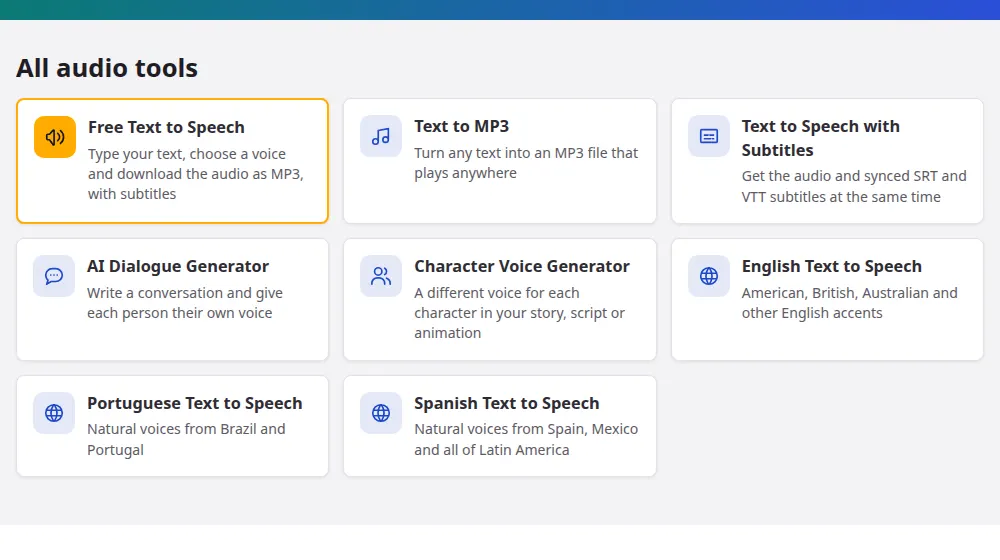
Which tool do you need?
Most of them start from text you write or paste, and others from a file you already have. The difference is in what you take away:
- Just the audio file: text to MP3, for messages, announcements and things to listen to later.
- Audio and subtitles for a video: text to speech with subtitles, which also gives you SRT and VTT files.
- A conversation: the dialogue generator, with a voice for each person.
- A story with a cast: the character voice generator, with a narrator if you want one.
- The text of a recording: speech to text for audio files and video to text for videos, of up to 20 minutes.
- Not sure yet: the main text to speech page gives you the audio and the subtitles.
- Subtitles for a video you already have: the subtitle generator, which listens to the file and gives you SRT and VTT.
Examples of use
A lesson for an online course
Write the script for one lesson at a time and generate each as its own audio. If a sentence changes after editing, you edit the text and generate that part again, in the same voice, instead of recording it from scratch.
An announcement for a shop
For a sale announcement or a phone greeting, a short text is enough. Try the same sentence with two or three voices from the voice list, download the MP3 and play it on any device.
Listening practice for a language class
Write a short dialogue using the vocabulary of the week, choose voices from the language you're teaching and lower the speed a little. Students can follow the text as they listen.
Getting better audio
- Write for the ear. Short sentences sound more natural than long ones, because nobody can re-read a voice.
- Use punctuation as direction. Commas create short pauses and periods create longer ones.
- Choose the accent of your audience. Voices are grouped by language and country, so Brazil and Portugal, or Spain and Mexico, have their own.
- Test before generating everything. A paragraph is enough to tell if a voice works for your project.
About the files
The audio is an MP3 tuned for voice, at 48 kbps: clear, and light enough to send in a message. Subtitles come as SRT, which works in nearly every video program, and VTT, the format for web pages. Each audio can have up to 5,000 characters, or about five minutes of speech.
Frequently asked questions
Can I turn an audio file into text?
Yes. The speech to text tool transcribes audio files of up to 20 minutes, and video to text does the same for videos. Both give you the text and the subtitles. All the other tools on this page go the other way or work on the sound itself.
Which tool is best for narrating a video?
Text to speech with subtitles: you get the narration and the subtitle file at the same time, already in sync. If your video only needs the voice, text to MP3 is simpler, with a single button to press and a single file to keep.
Can I use the audio commercially?
The voices belong to Microsoft, so the rules for commercial use depend on its terms. Check them before a commercial project. For a product or an ad campaign, the safest route is a licensed plan, such as Azure Speech, which is meant for that purpose.
Is there a limit on how many audios I can make?
Yes: up to 30 per hour for each visitor, which keeps the service free for everyone. Each audio can have up to 5,000 characters. If you reach the limit, wait a little and try again. Anything you've already downloaded stays with you.
In which languages can I create audio?
There are over 300 voices in more than 70 languages, many with several regional accents. The voice list shows all of them, and you can open the tool from there with the voice you chose already selected.
Which format do the files come in?
The audio is always an MP3, which plays on any phone, computer or editor. Subtitles come as SRT and VTT, the two most widely accepted formats. All of them are regular files, so you can keep them, send them or use them in another program.