Natural voices, without an account
Text to speech used to sound like a robot reading a phone book. Neural voices changed that: they pause, stress the right words and sound close to a person. SaveMeTools puts more than 300 of them on one simple page. There's nothing to install and no form to fill in: paste your text, press the button and listen.
What you can do here
- Convert text to MP3 and keep the file.
- Create SRT and VTT subtitles already synced with the speech.
- Create dialogues with several voices, with up to 6 characters.
- Give each character a voice in stories and animations.
- Browse all the voices, by language.
How it works
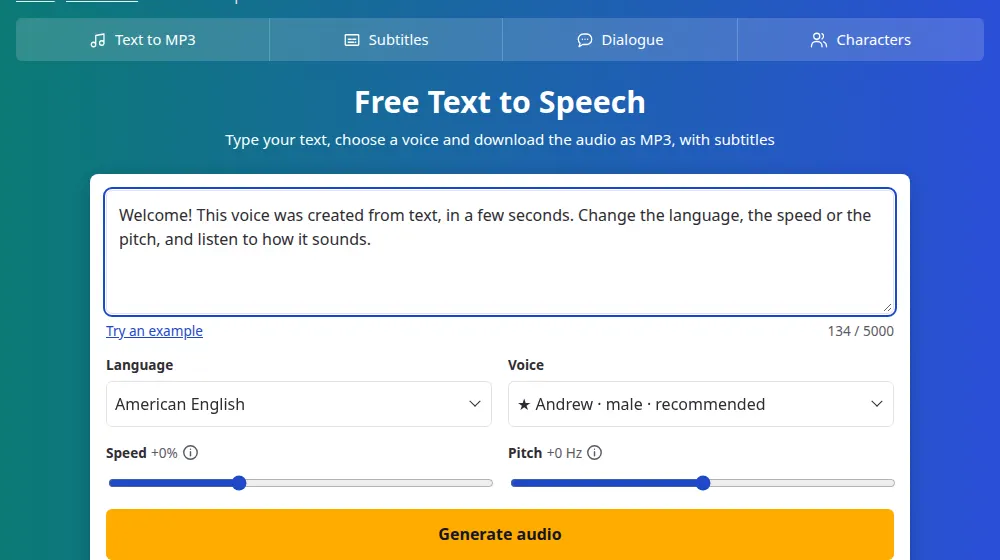
- Type or paste up to 5,000 characters in the box.
- Choose the language and the voice. The ones marked ★ are the newest and the most natural.
- Adjust the speed and pitch, if you like.
- Press Generate audio, listen and download the MP3, SRT or VTT file.
Tips for a better result
- Punctuation is direction. Commas create short pauses and periods create long ones. If a sentence sounds rushed, split it in two.
- Spell out what's hard to say. Write "twenty twenty-six" or "the World Health Organization" if the voice stumbles over numbers or abbreviations.
- Keep the speed moderate. Between -10% and +15% usually sounds most natural.
- Long text? Break it into parts: separate audios are easier to edit and to re-record if you change a sentence.
Speed and pitch, explained
These two sliders change how a voice sounds without changing the voice itself, and they apply to the whole audio.
- Speed sets how fast the voice talks, from -50% (half as fast) to +100% (twice as fast). At 0% the voice keeps its normal pace.
- Pitch sets how high or low the voice sounds, from -50 Hz to +50 Hz. Hertz (Hz) is the unit for how high a sound is: positive values make the voice higher, and negative values make it deeper.
- Where to start: leave both at zero, listen, and then change one at a time in small steps. Between -10% and +15% of speed and up to 10 Hz of pitch either way usually sound most natural.
Your text stays yours
We don't keep your text or your audio, and there's no history to look through. The result exists only in your browser tab, so when you close or reload the page, it's gone. Download whatever you want to keep. See the privacy policy for the details.
Frequently asked questions
Is SaveMeTools free?
Yes. There's no account and no paid plan, and every voice is available to everyone. The site is funded by ads. To keep it running well for all visitors, there's a limit of 30 audios per hour for each person.
How much text can I convert at once?
Up to 5,000 characters per audio, which comes to about five minutes of speech. For longer text, split it at the end of a paragraph and generate one part at a time, using the same voice and settings so the parts sound alike.
Can I use the audio in my videos?
Many people do, but the voices belong to Microsoft, and the rules for commercial use depend on Microsoft's terms. For a commercial project, check its terms first, or use a licensed Azure Speech plan. For personal use, study and presentations, the concern is much smaller.
Why did my audio disappear?
Because we don't save anything. The audio lives in your page until you reload or close it, so download it first. The upside is that your text isn't kept on any server. If it's gone, paste the text again and generate a new one in seconds.
What do the voices marked with a star mean?
They're the newest generation of voices (called Multilingual). They sound more natural, and they can also read text in other languages. That's why they appear in a group of their own in the menu, even when you've chosen a different language.
Does it work on my phone?
Yes, in any recent browser on Android, iPhone, tablets or computers. Nothing needs to be installed. After you generate the audio, the buttons below the player save the MP3, SRT and VTT files to your device's downloads folder.
Is this an AI voice generator?
Yes. The voices are neural voices that read your text with a natural rhythm and intonation, so you don't need to record anything. Write or paste the text, choose a voice and listen right on the page, or download the MP3 for a video, a presentation or a message.